
1 First launch and iCloud
Install Biblioscope from the App Store. If you plan to use it on several devices, start with your iPhone: it’s the one that will send your library to iCloud (see iCloud sync).
- When the app opens, tap Get Started. A first place, Home › Living room, is created for you: you can rename it or add others.
- To explore the app without scanning anything, load the demo library (Settings › Load the demo library). It doesn’t count toward the free limit and can be erased in one step.
- The first time you scan, iOS asks for camera access. Photo access is only requested if you import from your photo library, and location only for Near Me.
iCloud is on by default (Settings › iCloud Backup): your books, locations and profiles are stored in your free, private iCloud and found again on your other devices with the same Apple Account. Without an iCloud account, the library simply stays on the device. Changing this setting takes effect the next time the app launches.
No account to create
Biblioscope has no sign-up and no server: sync goes through your own iCloud, which the publisher cannot see.
2 Creating your places
Biblioscope files every book in a tree that mirrors your home:
PlaceRoomBookcaseShelf
For example: Home › Office › Glazed bookcase › Shelf 3. Create as many places as you like: main home, country house, office, storeroom…
- In Library, tap the map icon, Locations and profiles.
- Tap Add a place, then use a row’s … menu or swipe it to Add a room, Add a bookcase, Add a shelf, Rename or Delete.
- The whole tree is shown, indented by level, with the number of books on each row. Tap a row to see its books.
No need to set everything up in advance: when you scan, you choose the shelf or space you photographed (bookcase, room, table), and shelves can be created along the way.
Tip
Number your shelves from top to bottom (Shelf 1, 2, 3…): you’ll find any book at a glance, even in a large bookcase.
To keep a separate library (personal and professional, for instance), use profiles.
3 Scanning a shelf
Open the Scan tab (or tap Scan at the top of the library). The screen guides you through four numbered steps:
- Location. Choose the shelf or space you’re photographing: every book will remember its place.
- Photo straight on. Take a Photo, or choose from your library. One photo is enough.
- More photos (optional). For extra reliability, take the same shelf again from a step to the side; for a long shelf, move from left to right, up to five photos.
- Analyze. A few seconds: reading on device, then a search of the free catalogs. Allow about 2 to 4 seconds per book.
Tips for a perfect reading
- One photo, one shelf. Face the books from about three feet away, with every spine in the frame. The bigger the letters, the better they’re read: for the shelf below, start a new scan.
- Light. A well-lit room gives the best results. The flash is on by default; tap the bolt at the top of the camera to turn it off if it causes reflections on glossy jackets.
- Angle. Stand squarely in front. For a long shelf, hold your iPhone horizontally, or take 3 to 5 photos from left to right, keeping 2 or 3 books in common between photos.
- Sharpness. Tap the screen on the spines to focus.
- Tilted, stacked or upside-down books: no problem, they’re straightened automatically. Books standing and lying side by side count as the same shelf; a book displayed face out is recognized as a cover.
Biblioscope’s camera can take up to five photos in a row. These photos aren’t added to your photo library; the ones you pick from your library stay there, untouched. The app keeps no scan photo, only a small thumbnail of each spine.
On iPhone and iPad, the analysis carries on if you leave the app: iOS shows its progress.
4 Reviewing the results
After the analysis, nothing is saved yet. The results screen shows how many spines were detected, how many books were identified and how many need reviewing, then, for each book, the real thumbnail of its spine, its title, author and position on the shelf.
- Verified automatically: books with a confidence of 75% or more (or 60% if the record is a perfect match).
- To review: the others. They’re added, but set aside for you to confirm later.
- Unreadable: they aren’t added. Tap them to fix them, or Discard this spine.
A row of publisher chips (Folio classique (8), Penguin Classics (12)…) filters the results; for the selected publisher, Include All, Exclude All and Verify All work in one tap, and Group shows one section per publisher. Tap a book to pick another record or search differently. Finish by adding the books.
Sorting books to review with Apple Intelligence
In Collections › To review, the Apple Intelligence button suggests, for each doubtful book, confirming it, correcting it with a plausible record, or re-checking it. Everything happens on device. You check what to apply; deletions are never pre-checked. It requires a compatible device with Apple Intelligence turned on in Settings › Apple Intelligence & Siri.
Re-checking with a new photo
From the To review collection, a book’s details or a location, tap Re-check and photograph the shelf again: closer, from another angle or with more light. Each book found is confirmed or corrected; you approve the list before anything changes. The Scan screen also tells you when the chosen location holds books to review.
5 The ISBN barcode
When a spine can’t be read (old binding, stylized title, damaged spine), the barcode on the back takes over:
- Open the book’s details, then Edit.
- Tap Scan the barcode (ISBN) and aim at the barcode on the back.
- The ISBN is read and the right edition is found in the catalogs.
Barcode reading needs the camera of an iPhone or iPad; it isn’t available on Mac. Everywhere, Search the catalogs also finds a book by title, author or ISBN.
6 Editing and moving a book
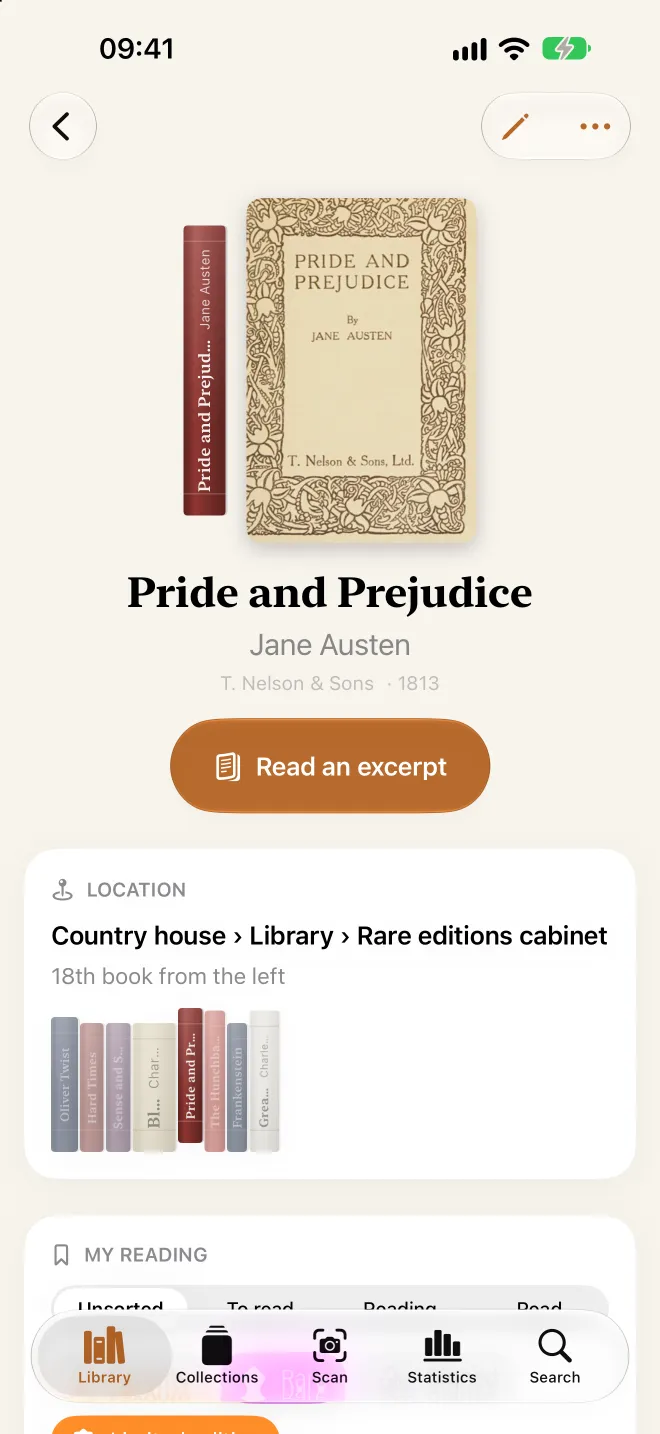
A book’s details show its spine and cover, its location with its shelf neighbors, its reading status (To read, Reading, Read), its tags (favorite, rare, signed, limited edition), lending, record, summary and themes.
- Edit opens the Book (title, subtitle, authors), Edition (publisher, series, number, ISBN), Location, Value and Notes sections.
- Moving a book: in Edit › Location, choose its new place and shelf.
- Rearranging a shelf: scan it again. A book already filed in the same place isn’t created twice; its record is completed and it takes its new position.
- Verify confirms a book to review; Read an excerpt offers the publisher’s description, the first sentence or a preview, in the book’s language.
- The More menu lets you Share or Delete the book.
7 The views
In Library, the View menu changes how you see your books:
- Shelves
- Your bookcases rebuilt spine by spine, with their color, height and thickness. The Photographed spines option shows the real ones. Tap a book: it slides off the shelf and opens.
- Floor plan
- The profile’s whole layout on one screen: places, rooms in dotted outlines, bookcases with one board per shelf and one stroke per book, in real order. Pinch or use − and + to zoom; tap a place, room, bookcase or shelf to open it. Books without a location are gathered under “Not shelved”.
- Grid
- Covers in a mosaic, with a badge on books to review.
- List
- One row per book, to run through everything quickly.
- Covers
- A perspective flow, cover after cover.
On iPad and Mac
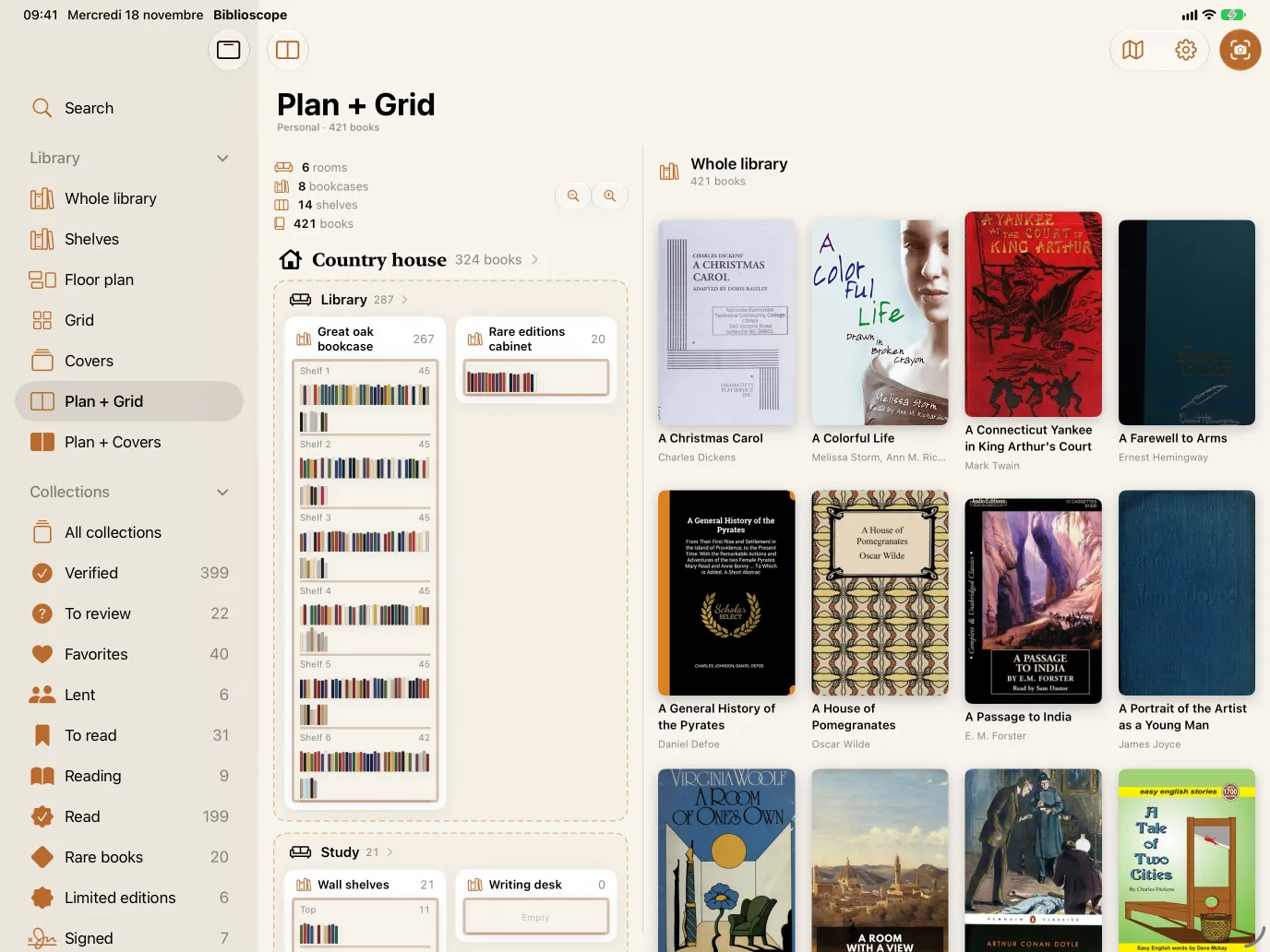
A full sidebar replaces the tabs: Search; Library and all its views; Collections with their counts; Places (homes and rooms); and the tools (Scan, Statistics, Near Me, Export, Backups, Settings).
Combined views — Plan + Grid, Plan + Covers, Plan + List — show the plan on one side and the books on the other: tap a place on the plan to filter the books next to it. On Mac, the ‹ › buttons and the ← → keys flip through covers.
8 Searching
The Search tab (the magnifying glass) searches as you type across titles, authors, publishers, series, ISBNs and locations. You can also ask a question in plain language; chips show what was understood (author, publisher, color, place, status, theme):
- “red books”
- “written by Umberto Eco”
- “never opened”
- “Books by Umberto Eco”
- “Red books in the office”
- “books about geopolitics”
French questions are understood too (« les livres rouges », « écrits par Umberto Eco »).
Near Me
Search › Bookstores and libraries near me (on iPad and Mac: Near Me in the sidebar) shows the closest ones on an Apple Maps map, within 3 km, widened to 10 then 30 km if needed. Each place shows its distance, address, directions, phone number and website. Your location is used for that search only and isn’t stored.
9 Collections and themes
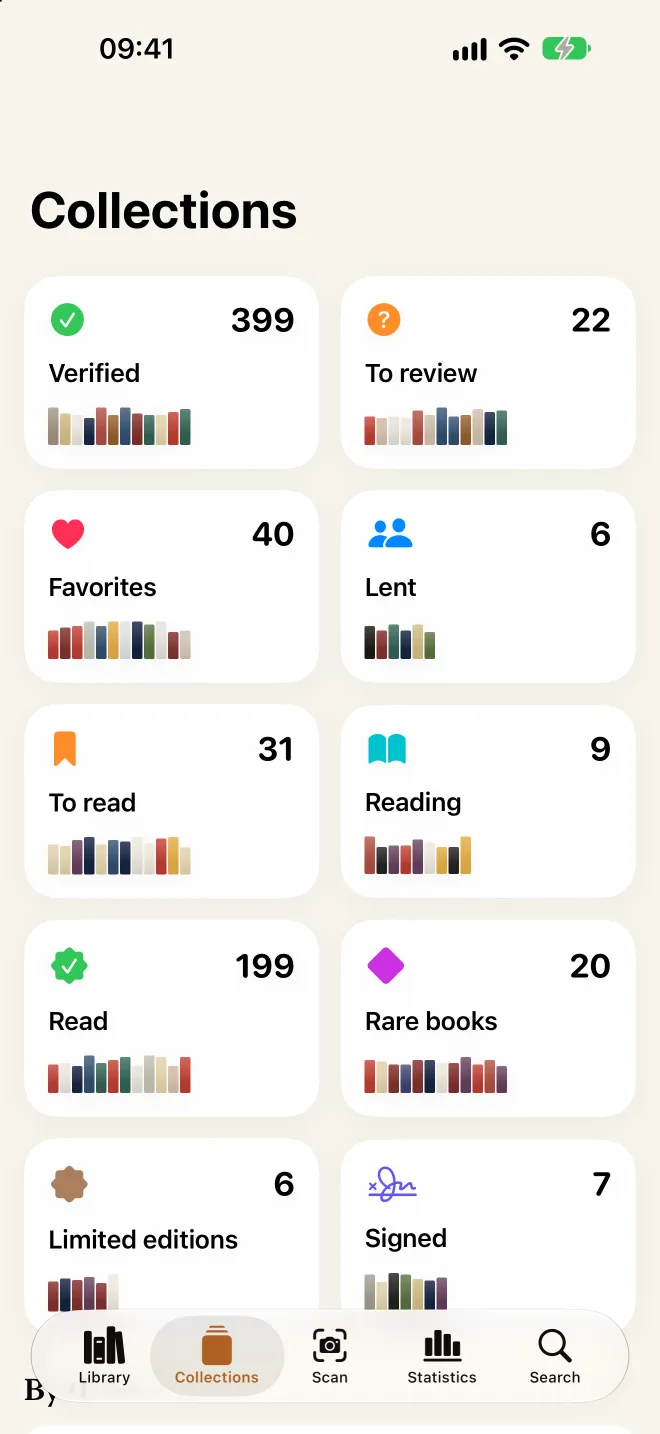
The Collections tab groups your books automatically by status and tags: Verified, To review, Favorites, To read, Reading, Read, Lent, Rare, Limited editions and Signed. Just set the status or tags on a book.
By theme: on a compatible device, Apple Intelligence sorts your books by subject (history, philosophy, crime, geopolitics…), right on the device. Elsewhere, Biblioscope relies on the subjects in the catalog records.
10 Lending a book
- Open the details of the book you’re lending.
- In the Lent to… field, type the borrower’s name.
- The book joins the Lent collection, which reminds you who has it and since when.
When the book comes back, simply clear the name: it leaves the collection and returns to its place on the shelf.
11 Missing covers
Biblioscope finds covers automatically and keeps them on the device, available even offline. When some are missing, a one-line banner appears at the top of the library:
Tap Find: missing covers are searched on Open Library, by title and author, in the book’s language, then on Apple Books. Progress and results are shown; the search carries on if you leave the app. Books still without a cover get a typographic one.
The same command is in the View menu and in Settings › Covers › Find missing covers.
12 Statistics, duplicates, copies
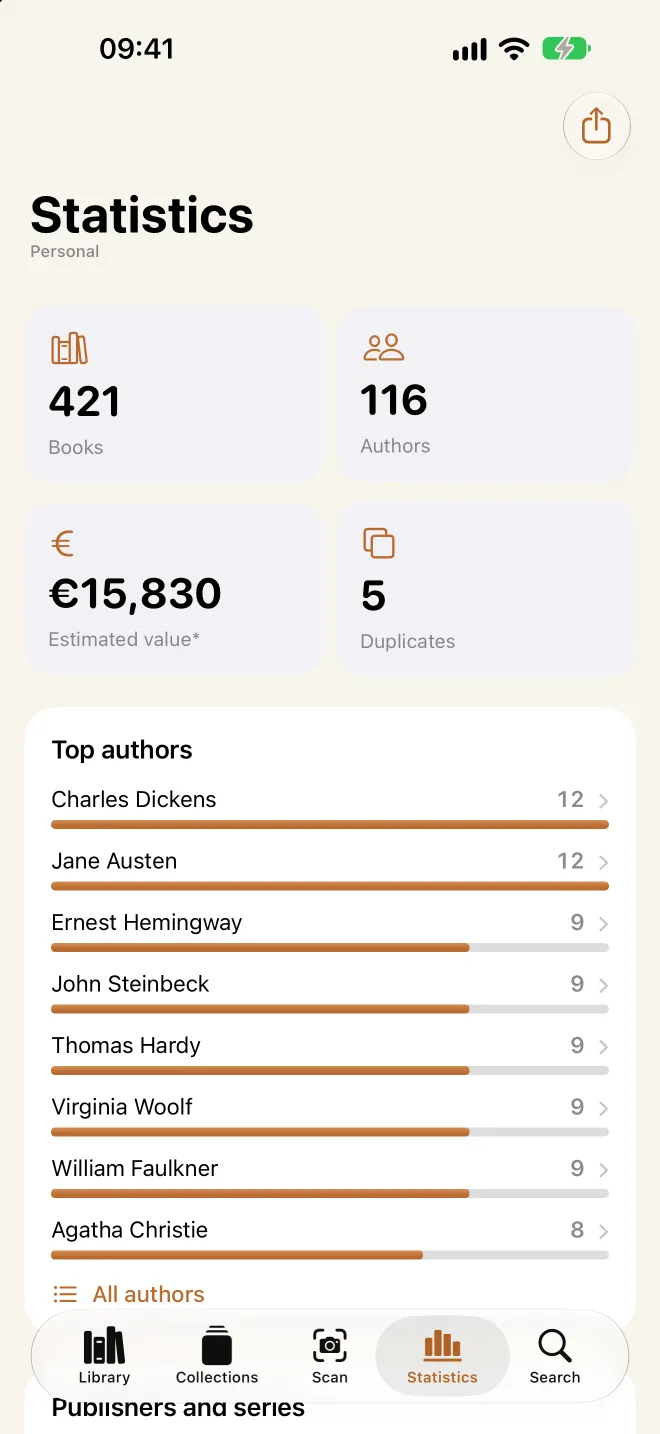
The Statistics tab shows the number of books and authors, the estimated value and duplicates, then rankings of authors, publishers and themes, spine colors and languages. Everything is clickable: an author, a color or a language opens the list of its books.
- Estimated value: a ballpark figure based on format and series (a collector’s edition isn’t a paperback). For a specific book, enter your own value in Edit › Value.
- Duplicates (personal profile): a book recorded several times in the same place is fixed with Keep One Entry, on the book or in Statistics › Duplicates. The entry you keep takes whatever the others had in addition. Different editions and copies shelved elsewhere are kept.
- Copies (library and company profiles): identical books become a single “× N” entry; grouping them into copies deletes nothing, and rescanning a shelf recounts its copies.
- Stock and quantities (bookstore and shop profiles): each item has its quantity, set on its page. When the same book is shelved in several places (window, section, back room), the book’s Stock card shows the total quantity and the quantity at each location; Statistics › Stock lists every multi-quantity item with its locations.
13 Profiles for professionals
A profile is a separate library, with its own books and locations: “Personal” and “Chambers”, or one profile per collection, site or institution. Museums, institutional libraries, foundations, bookstores, shops, law firms, medical practices, companies and researchers get an inventory that fits.
- Open Locations and profiles › Profiles.
- Tap New Profile, name it and choose its use: Personal, Bookstore, Shop, Library, Company, Law firm, Medical practice or Researcher.
- Tap a profile to Switch to this profile. The whole app then shows the checked profile: library, collections, statistics, search, export, locations and scanner.
Bookstore and shop profiles manage stock in quantities, library and company profiles count copies, rather than duplicates. The dictionary of nearly 800 publishers and series also recognizes legal and medical publishers, and you can add your own (Settings › Known publishers).
Settings › Erase… always acts on the active profile only: books to review, the demo library, books not shelved, all books while keeping locations, or the whole profile. The number affected is shown before erasing, which is permanent.
14 Exporting (Pro export)
Tap Export at the top of the Statistics tab (or in Settings; on iPad and Mac, in the sidebar). Choose the format and the scope — the whole library or one place — then Prepare the File and share it.
| Format | Contents | Access |
|---|---|---|
| CSV, JSON, XML | Title, authors, publisher, series, ISBN, location, position, color, status, estimated value | Free |
| Excel | The same columns, in a workbook ready to sort and filter | Pro export |
| PDF catalog | A formatted catalog: statistics, books by location, estimated value | Pro export |
Pro export is a one-time purchase: it’s yours for good, on all your devices. Profiles that track stock add a “Quantity” column (bookstore, shop) or a “Copies” column (library, company) and multiply the estimated value accordingly.
15 Unlimited library
The free version holds up to 1,000 books across all profiles; the demo library doesn’t count. Beyond that, saving a scan offers:
- the one-time Unlimited library purchase, which lifts the limit in all your profiles;
- or adding only the first books of the scan, from left to right.
Settings › Purchases lists both services, their status and Restore Purchases. Purchases are handled by Apple and work on iPhone, iPad and Mac with the same Apple Account.
16 iCloud sync
Your library moves between devices through your private iCloud: books, locations, profiles, statuses and loans.
- Install Biblioscope on your iPhone first and let it send the library to iCloud (internet connection, a few minutes for a large library).
- Then install the app on your iPad or Mac, signed in with the same Apple Account, with iCloud turned on.
- On first launch, the “Retrieving your iCloud library…” screen waits for your books to arrive, then offers Open my library.
From then on, every change made on one device appears on the others. Places created while waiting are merged with those arriving from iCloud. Covers are kept on each device and found again automatically.
Good to know
For sync to work, iCloud must be enabled for Biblioscope in the device’s settings, and the app’s Settings › iCloud Backup option must stay on.
17 Backups and restore
On top of iCloud, Biblioscope makes automatic copies of your library on the device, before it opens (at most twice a day, and with every new version of the app). The three most recent are kept.
- Open Settings › Backups on this device (on iPad and Mac: Backups in the sidebar).
- Choose a backup and tap Restore what’s missing.
Restoring only adds missing books, places and profiles: nothing is erased or replaced, and restored books are sent back to your iCloud. If iCloud ever removed your books from the device (after an account change, for example), Biblioscope notices and offers to restore right away.
18 Settings
Open Settings with the gear at the top of the library (on iPad and Mac, in the sidebar).
- App language
- iPhone language, Français or English. Close and reopen Biblioscope to apply it.
- Purchases
- Pro export, Unlimited library and Restore Purchases.
- Profile
- The active profile; manage the others in Locations › Profiles.
- Free sources
- BnF and Open Library, plus the National catalogs switch (on by default): Library of Congress for English, National Library of Spain for Spanish, National Diet Library for Japanese. A national catalog is only queried for books in its language. Google Books is only used with your own free key, which is optional.
- Covers
- Find missing covers, on Open Library then Apple Books, in the book’s language.
- Known publishers
- The publishers and series spotted on spines (Penguin, Folio, Pléiade…). Add your own: name, series, words printed on the spine, category and format.
- Backup
- iCloud Backup (on by default) and Backups on this device.
- Erase…
- Targeted erasing, limited to the active profile, with confirmation.
- Help and About
- This guide, the website and the record sources.
19 Questions and troubleshooting
A book on the shelf doesn’t appear
Its spine was probably unreadable: unreadable spines aren’t added. Photograph the shelf closer or from another angle, add a second photo from a step to the side, or scan its ISBN barcode.
Titles are misread
Check the light and turn off the flash if it causes reflections. One shelf per photo, facing the books: the bigger the letters, the better they’re read. Uncertain books stay “to review”: re-check them or sort them with Apple Intelligence.
My library doesn’t show up on my iPad or Mac
Make sure both devices use the same Apple Account, that iCloud is enabled for Biblioscope and that they’re online. The iPhone must have sent the library at least once: open the app there for a few minutes. On the new device, let the retrieval screen finish.
My books disappeared after an iCloud account change
Open Settings › Backups on this device and restore the most recent backup: missing books are added, then sent back to iCloud.
Apple Intelligence isn’t available
You need a compatible device, with Apple Intelligence turned on in Settings › Apple Intelligence & Siri and its model downloaded. Without it, the rest of Biblioscope works; themes then rely on catalog records.
A cover is missing or wrong
Tap Find in the “N without a cover” banner, or use Settings › Covers. If the cover doesn’t match, check the edition on the book (Edit, ISBN): the cover follows the record.
My purchases don’t appear on another device
Open Settings › Purchases and tap Restore Purchases, signed in with the Apple Account used for the purchase.
Near Me finds nothing
Allow location for Biblioscope in the device’s settings (Privacy & Security › Location Services), “While Using the App”. If nothing is found, try the “All” filter or refresh later.
Another question? Write to us: app@biblioscope.app.